Every week somebody sends me the same screenshot. Traffic is coming in, the numbers look sort of normal, and then they open the acquisition report and half the rows say (not set). They usually arrive at my inbox after reading three articles that explain the word and not the cause.
So let me be blunt about the word first, because the name is misleading. Google's own definition is narrow: (not set) is the placeholder Analytics uses when it has not received a value for that dimension. Read it again. The measurement arrived, the value for that one field did not. The session exists, the user exists, the event exists, and the thing missing is the label that says where it came from.
There is a second value people mix into this, and Google separates them: (data not available) is the related label the report shows when the value cannot be computed at all, and in Google's words you usually cannot act on it. (not set) is the one you can usually fix, which is why this article is about that one and not the other.
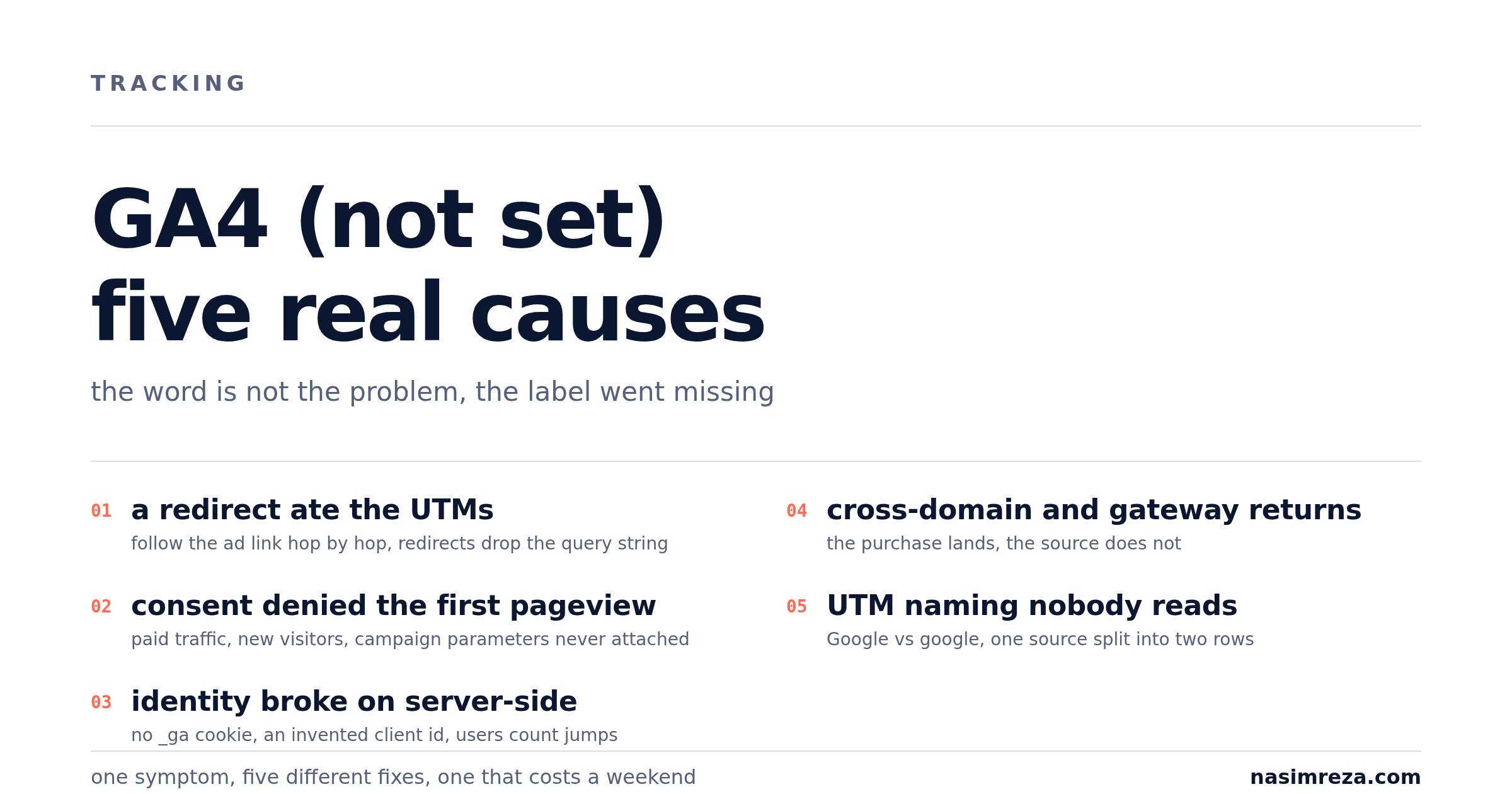
That matters because the same symptom has five different causes, and four of them are not Google's fault at all. Fixing the wrong one is how people spend a weekend rebuilding a container that was never broken.
What (not set) actually means
GA4 labels a session from the first pageview it sees. That first pageview should carry five parameters: utm_source, utm_medium, utm_campaign, plus gclid or fbclid when the click came from an ad. If the first pageview arrives without them, and there is no referrer GA4 trusts, the session source becomes (not set) or direct, and every event inside that session inherits the hole.
One detail worth keeping straight, straight from Google's dimensions table: an empty value sent to Analytics shows as a blank cell, and (not set) appears when no value is sent at all. If a row is blank, look at your tag. If it says (not set), look at what the tag could not find.
In the interface you meet it in four places, and they are not the same problem:
- Session source or medium (not set): the landing pageview lost its campaign parameters.
- Landing page (not set): GA4 saw events but no pageview it could treat as a landing.
- Users reported as (not set) or unassigned: the identity of the visitor could not be stitched to a client ID.
- Conversions attributed to (not set): the conversion happened, the source did not survive the journey to it.
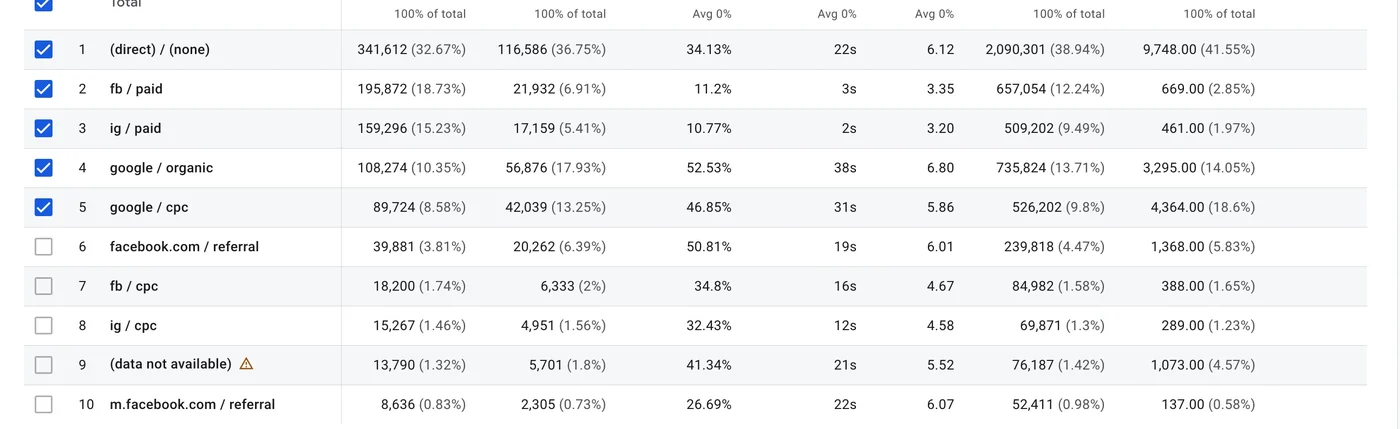
(data not available), the value GA4 uses when the dimension cannot be computed at all. (not set) sits in the same part of the table and usually can be fixed, which is what the causes below are about.Read which of the four you have before touching anything. The rest of this article is the causes, in the order I usually find them.
Cause 1: a redirect eats the parameters
The most common one, and the cheapest to check. Somebody runs an ad to yourstore.com, the site 301s to www.yourstore.com or to a locale path, and the query string disappears somewhere in the chain.
Open the ad URL in a browser with the network tab open and follow every hop. If the final URL has no utm_source, you found it. Same test for a link shortener, a branded short domain, or a landing page builder that rebuilds the URL on load.
The fix is boring: redirects should preserve the query string (return 301 https://www.$host$request_uri; in nginx, the equivalent setting in your host's panel), and every intermediate step in the flow, including the shortener, has to forward it. On Shopify, an app that rewrites URLs at the edge can silently drop it, which is why I check the ad link itself and not just the theme.
Cause 2: consent denies the pageview but not the event
If you run Consent Mode v2, this pattern shows up constantly after a CMP install: analytics storage is denied at first paint, the pageview goes out in cookieless form, the campaign parameters are not carried into the model, and the later purchase event (fired after consent, from a server container) lands in a session with no source.
The tell is that (not set) appears mostly on paid traffic and mostly on the first session of new visitors, while returning visitors look fine. Check the consent state in DebugView for the first pageview of a denied session, and check whether your server-side purchase tag sends gcd at all. A server tag that ignores the consent string will keep sending traffic GA4 has already decided to model differently.
If that is your case, the fix is not a new tag. It is order: consent default, consent update, then the pageview with parameters, and a server container that reads the consent string instead of assuming it. I wrote the whole sequence up in the Consent Mode v2 walkthrough.
Cause 3: identity breaks when server-side goes live
This is the one nobody warns you about, and it is the reason the question keeps appearing in merchant forums as "GA4 filled with (not set) users the day I switched to server-side".
Block googletagmanager.com at the network layer on a store with server-side tracking and load a product page. No _ga cookie gets written, because the Google script never ran. The browse events still leave, each carrying an identifier the server invented a moment earlier. From the reporting side you get a block of new users whose country, landing page and session source all read (not set), and often no pageview at all, only events.
Every one of those counts as an active user, so your user totals jump while the reports under them stop making sense. That is the signature: totals move up, segmentation collapses.
The fix is to make the browser and the server agree on one identifier before the events start flowing. In practice that means a first-party client ID written on the site (Fastly, Cloudflare, your own cookie setter), the same value passed to the server container, and the container configured to expose and honour the FPID cookie instead of generating a fresh ID per request. Then check it: two sessions from the same browser should share one client ID in both the browser tag and the server tag.
Cause 4: cross-domain and the payment gateway return
Checkout on one domain, payment provider on another, and the buyer comes back to a thank-you page that GA4 treats as a new session with no referrer. The purchase gets counted, the source does not.
Two settings decide this: cross-domain measurement has to list every domain in the flow, including the payment provider's if it redirects back to you, and the linker has to be present on the pages where the session continues. On Shopify stores the modern version of this problem lives in the checkout extensibility changes rather than in a Google setting, which is why the purchase fires and the attribution does not.
Test it the honest way: place one real order from an ad click on a clean browser profile, then look at the source of the purchase session. Not the event count. The source.
Cause 5: the tagging is wrong before the data ever moves
The unglamorous one, and still common. A few patterns I see in almost every audit:
utm_source=Googleon one campaign andutm_source=googleon the next, so the report splits one source into two rows.- The campaign value written into
utm_source, because whoever built the link sheet did not read the column headers. - A UTM set on the landing page link but not on the ad destination, so the parameter arrives only after an internal click and never touches the first pageview.
- Auto-tagging on in Google Ads while manual UTMs are also set to the same URLs, so the two overrule each other depending on the platform's mood that day.
UTMs are not optional decoration. GA4 reads them once, on the first pageview, and keeps them for the whole session. Anything that arrives late is lost, not merged.
Five-minute triage: which one do you have
| Symptom you see | Most likely cause | Where to look |
|---|---|---|
| (not set) mostly on paid, mostly first-time visitors | Consent blocking the first pageview | DebugView consent state, server tag gcd |
| Every source row (not set), all traffic | Redirect or shortener dropping the query string | Follow the ad URL hop by hop |
| User count jumped, segments collapsed, started on a known day | Identity broken by server-side tracking | _ga presence, client ID in browser vs server |
| Purchase counted, source missing, only on some orders | Cross-domain or gateway return | Cross-domain list, linker, one real order |
| Source names look human and wrong | UTM naming | The link sheet, not the container |
Fix order, if you want my opinion
Do not start with the container. Start with the URL. Redirects and UTMs are free to check and they explain more (not set) rows than every tag mistake combined. Then consent, because a consent bug quietly rewrites your whole acquisition report. Then identity, if and only if you actually run server-side. Cross-domain last, because it needs a real order to prove anything.
And before you change a single setting, write down the number you are trying to fix. "Sessions with source (not set) as a share of paid sessions" is a number. "The reports look weird" is not, and it cannot be verified a week later.
When it is worth paying somebody
If the cause is a redirect, you just fixed it for free and you do not need me. If two of the five are present at once, which is normal on a store that has changed platforms or added server-side this year, the diagnosis is a couple of hours of reading a container and one real order.
That is exactly what the read-only audit is: I open your container and your reports, reconcile seven days of real orders against GA4, Google Ads and Meta, and hand you a written list of what is broken and in what order to fix it. No access to your ad accounts, no changes without your say.
Read-only tracking audit, 48 hours, 99 dollars, credited against a package if you continue within two weeks. If you would rather check the store's setup yourself first, start with the GA4 setup walkthrough and the purchase value article. Between them they cover most of what a Shopify store gets wrong before the numbers ever reach a report.
Want this set up properly in your own account? Fixed-price packages from $1,250, read-only audit first — or ask one question on a $19 call.