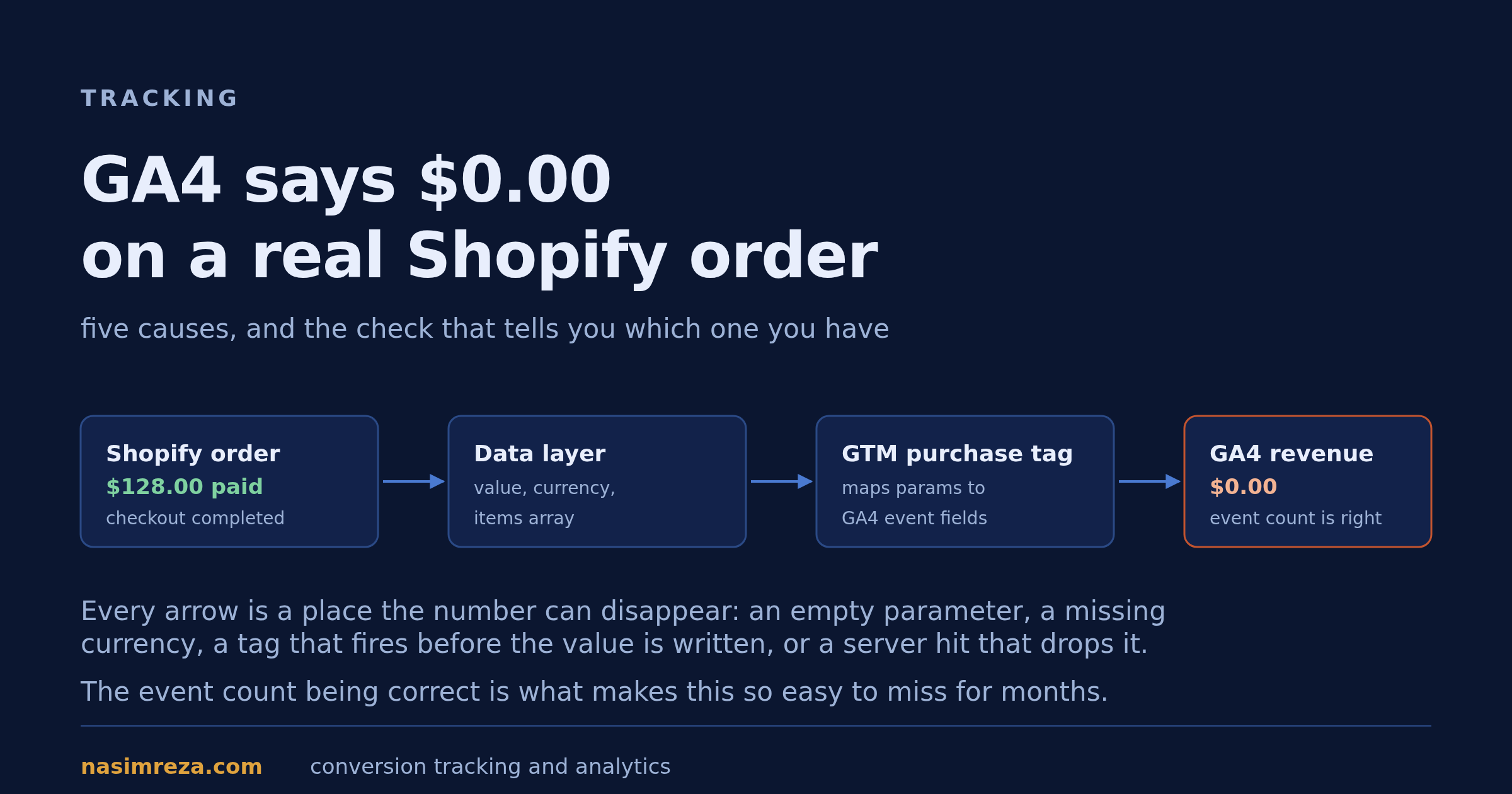
GA4 showing Shopify purchases with a $0 value is the most common ecommerce tracking ticket I get. The event count is usually correct, the funnel looks fine in reports, and the revenue column says zero or a fraction of what Shopify took. Somebody notices a month later, when the ads team asks why ROAS is missing.
The pattern matters: a $0 value is almost never a Google Analytics bug. It is a missing parameter, a missing currency, a tag that fires too early, or two tags competing over the same purchase. Here is how to tell which one you have, in an order that takes minutes rather than evenings.
What a $0 purchase actually tells you
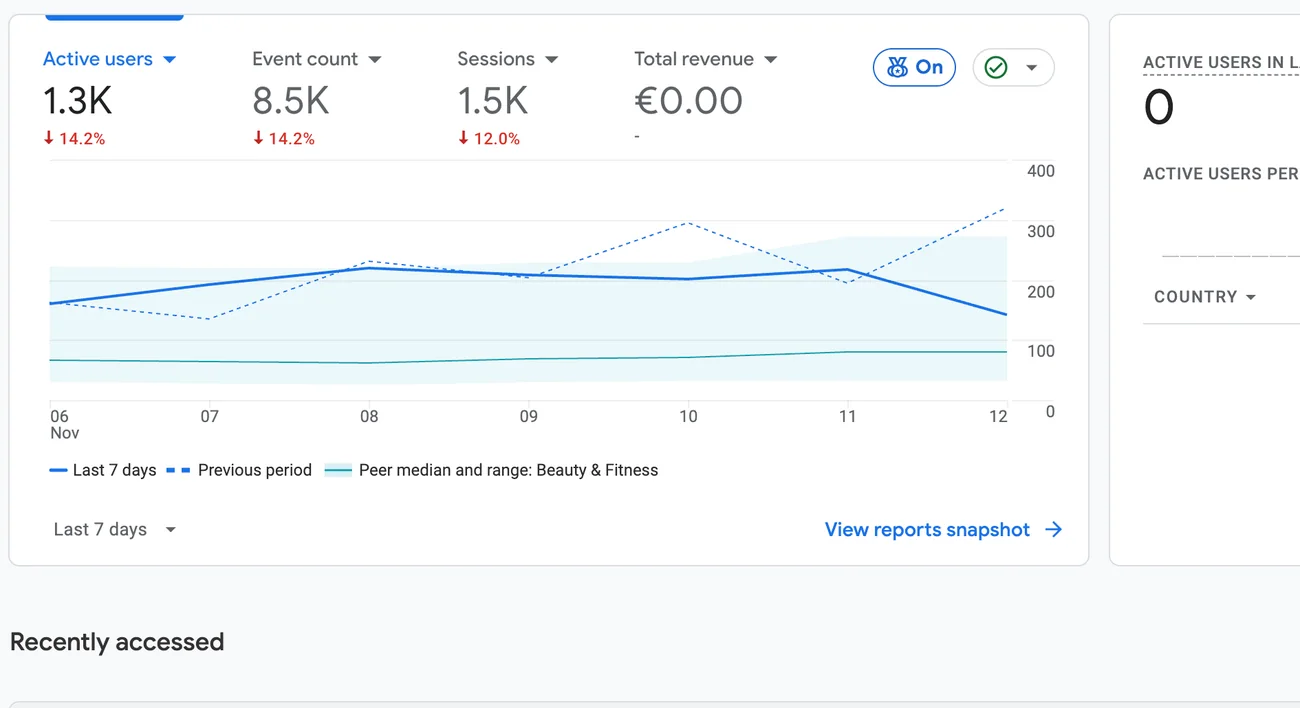
GA4 records a purchase when the purchase event arrives. The revenue column is filled from two parameters on that event: value and currency. If either one is missing or malformed, the event still counts, and the money reads as zero. Nothing errors. There is no warning in the interface. That silence is why this survives for months.
So the question is never "why is GA4 broken". It is "which of the four things between the order and the report dropped the number", and the event count being right is a clue: your tag fires, your trigger matches, your session assignment works. The problem is inside the event payload.
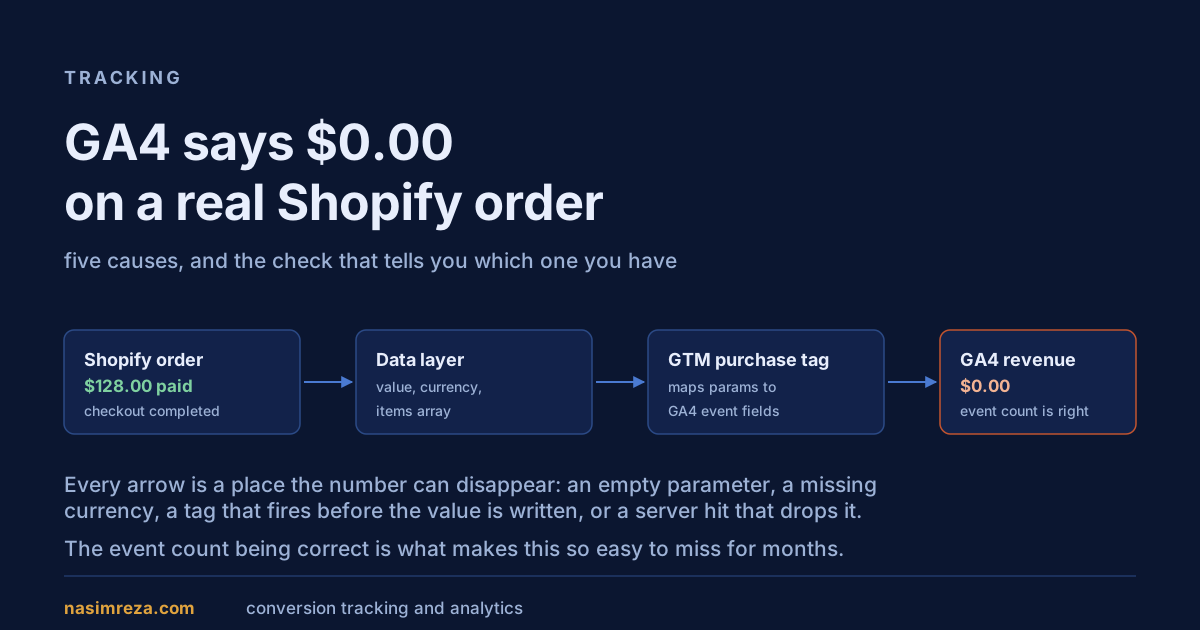
The five causes, and how each one looks
| What you see | Usual cause | Where to look |
|---|---|---|
| Purchases counted, revenue $0.00 | The tag has no value parameter mapped, or it maps from a variable that resolves to undefined | GTM tag preview, purchase event parameters |
| Revenue $0.00 and currency shows "not set" | currency missing, or set to an invalid code such as "USD " with a space | DebugView event parameters |
| Revenue roughly double, or half, the order count | Two purchase tags fire: Shopify's native GA4 channel plus your own GTM tag | GTM preview, then GA4 DebugView |
| Revenue $0.00 on some orders only | The tag fires before the data layer is written, so value is empty on fast checkout themes | Tag firing order and trigger timing |
| Browser revenue fine, server-side reports zero | The Measurement Protocol or server container hit does not include value and currency | Server container logs, hit payload |
A container can look complete and still send nothing useful
This is the part that wastes people's evenings. Every ecommerce event has a tag, every tag has a trigger, and the tag list reads like a finished job. Here is one such container, and it has all ten ecommerce events configured:
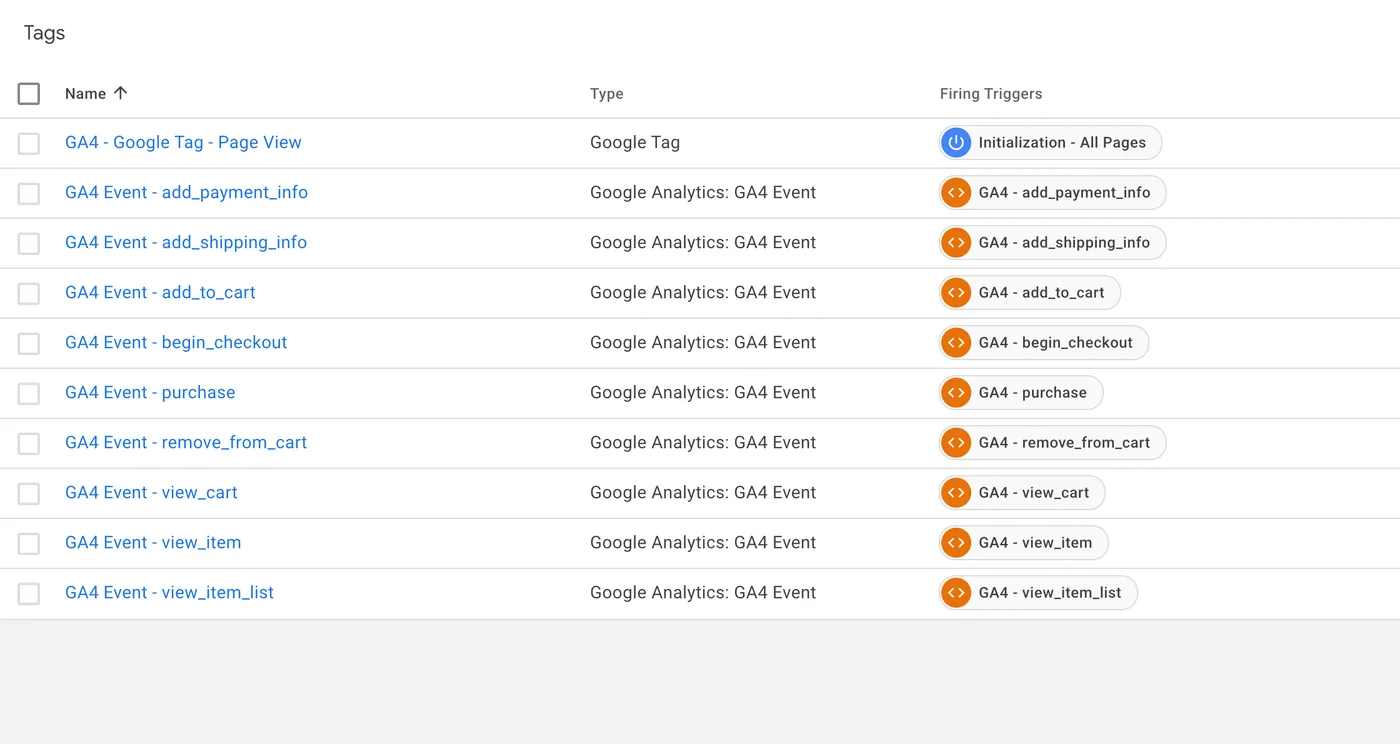
Presence proves nothing. What matters is whether the parameters on the purchase tag resolve to real values at the moment the tag fires, and whether they use the names GA4 reads. The tag list cannot tell you either.
Cause 1: the value parameter is not mapped at all
This is the most common one, and it is almost always a mapping problem rather than a data problem. The purchase data layer is fine, the tag fires, and the value field in the tag configuration is either empty or points at a data layer variable whose name changed when the theme was updated. The same container as above, opened one level deeper, is a good example of how much there is to break:
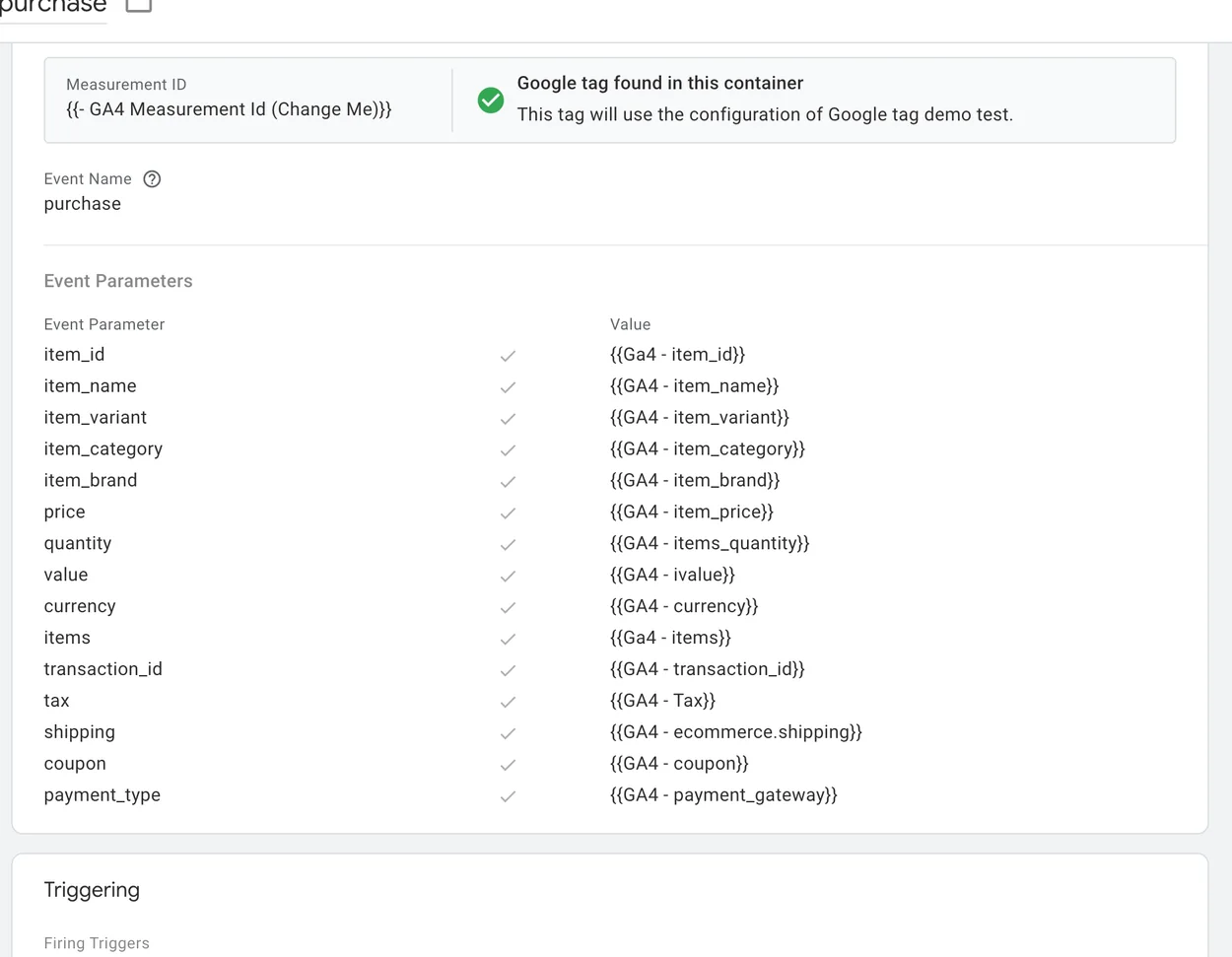
value here is the entire difference between revenue and no revenue.Two things to notice in a configuration like this. First, item-level parameters such as item_id and price are being sent as top-level event parameters alongside the items array. GA4 product reports read the array, not the loose parameters, so item revenue and product-level reporting can stay empty even when the total is right. Second, every one of those variables resolves from a data layer path such as ecommerce.value. Rename that path in the theme, or push the event before it is filled, and the tag keeps firing with empty fields.
Open Tag Assistant, trigger a test purchase, and read the purchase event parameters line by line. If value shows as undefined or is absent, stop reading further. Everything else is downstream of that.
The same logic applies to items. Revenue can be correct while item-level revenue is zero, which breaks the product reports and any audience you build on item data. If items is an array of objects with item_id, item_name, price and quantity, the product reports fill in. If it is a single object, or a string, they stay empty.
Cause 2: currency is missing or malformed
GA4 needs a valid ISO 4217 code in currency. Uppercase, no symbols, no spaces. USD works. usd usually works. $, USD with a trailing space, or a currency pulled from a settings field that is empty all produce the same result: the revenue is discarded and the event is still counted.
Stores that sell in several currencies make this worse, because the displayed currency after a converter app is not always the settlement currency. The value sent to GA4 should be the amount the customer actually paid, in the store's base currency, with the matching code. If you convert in the browser, send both the amount and the code you converted to, so the number is reproducible later.
Cause 3: two purchase tags on the same order
Shopify has a native Google Analytics channel, and most stores also have a GTM container with their own purchase tag. When both run, you get two purchase events for one order. Sometimes revenue doubles. Sometimes one tag wins and the other overwrites the event with a thinner payload, which can look like $0.
Pick one owner for purchase tracking: either the native Shopify integration, or your own GTM tag with the full payload. Not both. The GTM route is the one I recommend whenever the store needs item-level data, Google Ads value, or a server-side copy, because the native channel gives you far less control over the payload.
Cause 4: the tag fires before the value exists
On faster checkout themes and one-page checkout extensions, the thank-you page renders before the data layer push completes. The tag fires on page view, reads an empty variable, and sends a purchase with the right order id and a zero value.
Two fixes, in order of preference: trigger the tag on the data layer event rather than the page view, so GTM waits for the push; or, if you must use page view, add a short delay and a check that transaction_id is present before the tag can fire. Triggering on the event is the durable answer, because a delay is a guess about how slow the page can get.
Cause 5: the server-side copy lost the parameters
If revenue is correct in the browser path and zero in the server path, the loss is in the hit itself. A Measurement Protocol call or a server container forward needs value and currency in the same place the browser event put them, and event parameters do not travel by themselves when you rebuild a payload by hand.
The tell is a split in reports: GA4 shows revenue for orders that came through the web container, and nothing for orders that only reached the server. Compare the two paths on the same order before changing anything.
The payload that works
This is the shape I send from GTM for a Shopify purchase. Names matter, so copy them exactly.
{
  "event": "purchase",
  "ecommerce": {
    "transaction_id": "SHOPIFY_ORDER_1001",
    "value": 128.00,
    "tax": 8.40,
    "shipping": 5.00,
    "currency": "USD",
    "items": [
      {
        "item_id": "SKU-1",
        "item_name": "Product name",
        "price": 128.00,
        "quantity": 1
      }
    ]
  }
}
Three details people miss. transaction_id must be the order number, not the checkout token, so that a refresh does not create a second purchase. value should be the amount paid, including shipping and tax, if those are what the customer was charged. And the items array repeats the price per unit, not the line total, because GA4 multiplies price by quantity for item revenue.
How to prove which cause you have in five minutes
- Open Tag Assistant, connect to the store, and place a real test order with a card you own.
- Watch for the purchase event and open its parameters. Note whether
value,currencyandtransaction_idare present and what they contain. - Open GA4 DebugView on the same device. The event appears within seconds. If it is missing entirely, this is not a value problem and the rest of this page does not apply.
- If the event is there, expand it and compare the parameter values against the order confirmation email. Any mismatch is your cause.
- Check whether a second purchase event appears for the same order. Two events, one order, is cause three.
Fix order, and what to re-test
Fix the payload first, then the tags, then the server path. Retest in that order, because a server copy of a broken browser event just moves wrong numbers faster.
- Map
value,currency,transaction_idand the items array in the purchase tag. - Remove or disable the competing purchase tag, whichever route you did not choose.
- Change the trigger from page view to the data layer purchase event.
- Place one real order, and confirm the values in DebugView before touching anything else.
- Only then rebuild or re-send the server hit, and compare both paths on the same order id.
Reconciliation: what "fixed" looks like
Do not judge the fix by GA4 alone. Compare three numbers for the same day: orders and revenue in Shopify, purchases and revenue in GA4, and the same in Google Ads if you run it. GA4 will not match Shopify exactly, and should not: consent denials, ad blockers, refunds and partial refunds all move the numbers in one direction.
What you are looking for is the gap closing and staying closed. A working store usually lands within a few percent on order count and revenue, and the remaining difference is explainable by consent state. If GA4 reports more revenue than Shopify, you have a duplicate firing, not a reporting quirk.
Once the numbers agree, the downstream work starts paying: Google Ads Smart Bidding has a value to optimise toward, and Meta stops treating every order as equally valuable. That is the reason this fix is worth a morning, and also the reason I check it first on every account I inherit, across the 303 jobs I have done on Upwork.
If you have already spent a week on this, the full GA4 ecommerce setup for Shopify covers the data layer end to end, and conversion tracking for ecommerce shows which layer to fix first when several are wrong at once. If you want it diagnosed properly instead of guessed at, my tracking packages start at $199 with a read-only audit, and a $19 15-minute call is usually enough to identify which of the five causes you are looking at.
Want this set up properly in your own account? Fixed-price packages from $199, read-only audit first — or ask one question on a $19 call.