I have had the same conversation three times this month. Somebody installs Google Tag Manager on a Shopify store, the purchase event goes quiet, and the first instinct is to rip everything out and start again. That is usually the worst thing to do, because by then the store already has two tracking systems wired into it and nobody wrote down which one owns which event.
Shopify's web pixel and a GTM container are not two options you choose between. They run in different places, they see different things, and the checkout is the wall between them. Once you take that in, the rest stops being a matter of taste.
What a web pixel actually is
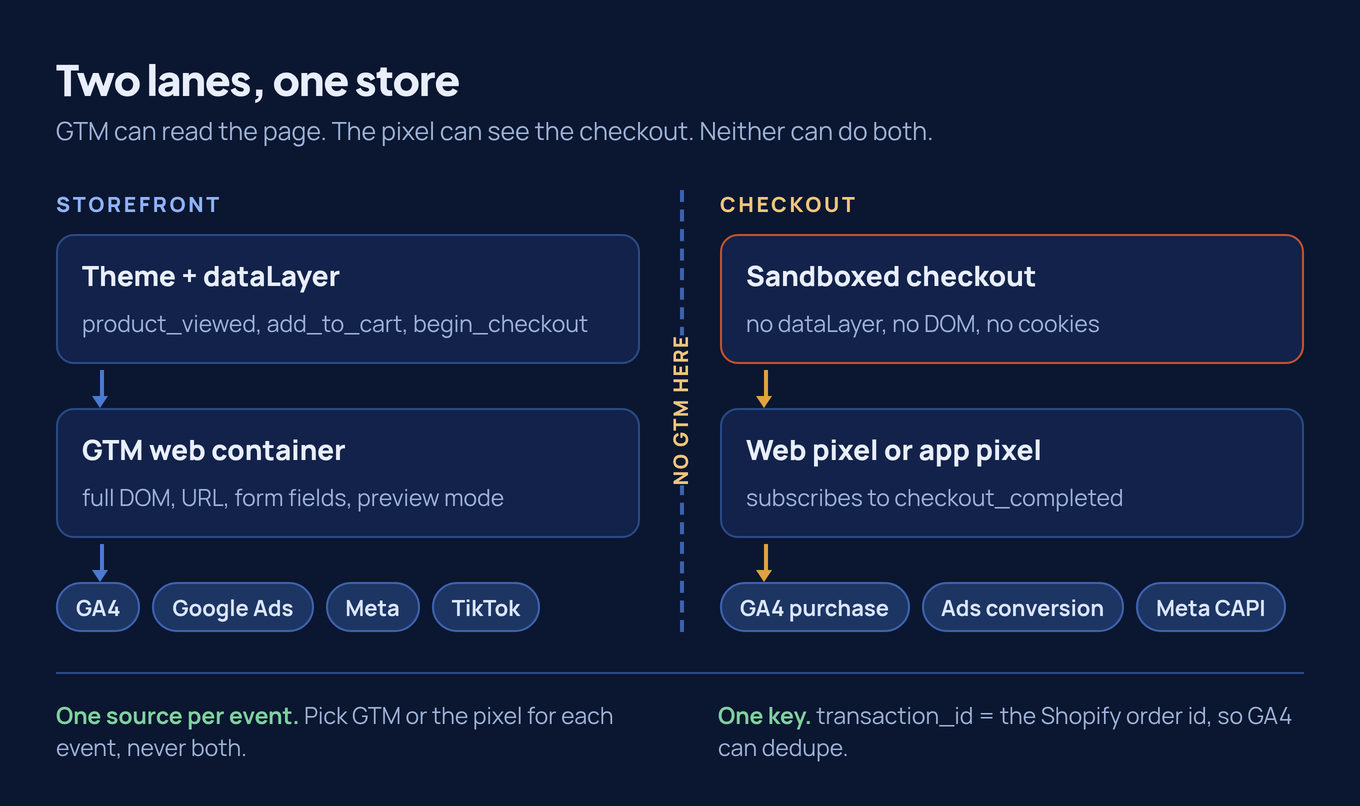
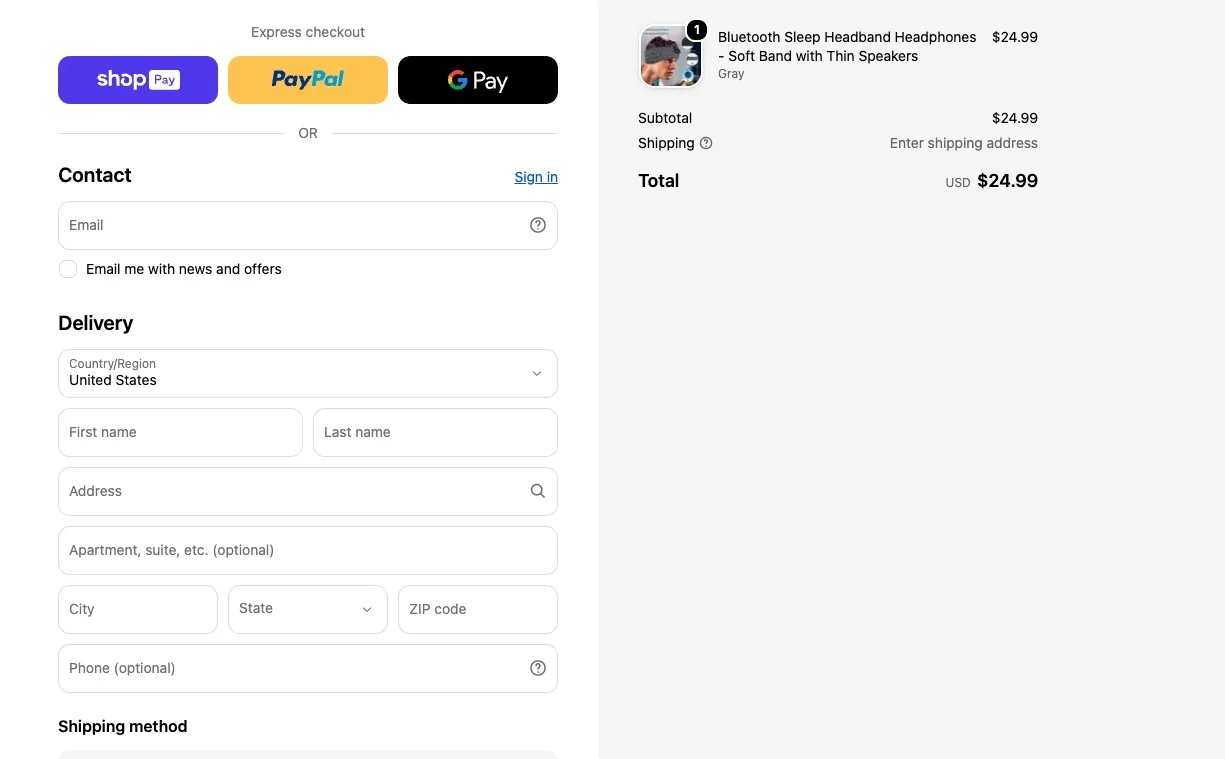
A GTM container is a script in your theme. It reads window.dataLayer, the DOM, the URL, form fields, scroll depth, whatever the page exposes. That is exactly why it can do almost anything you want on a product page, and why it is blind inside a checkout Shopify controls.
A web pixel is Shopify's own event layer. You add a custom pixel under Settings, Customer Events, or install an app pixel, and your code subscribes to standard events. page_viewed, product_viewed, product_added_to_cart, checkout_started, checkout_completed. It runs inside a sandbox Shopify owns, which is why a pixel is allowed anywhere near the checkout and also why it cannot do half of what GTM does.
| GTM container | Web pixel | |
|---|---|---|
| Runs on | Theme, every storefront page | Sandboxed iframe, storefront and checkout |
| Sees | DOM, URL, data layer, form fields, clicks, scroll | A structured event payload from Shopify, nothing else |
| Checkout events | No, not on the upgraded checkout | Yes, all of them |
| Debugging | Preview mode, Tag Assistant, console | Shopify Pixel Helper, the pixel's own logs |
| Consent | Whatever your CMP writes into the data layer | Shopify holds the pixel until the visitor agrees, in required markets |
| Good at | Storefront tracking, marketing tags, custom events | The checkout, and surviving theme changes |
The wall is the checkout
None of this was true a few years ago. The old Shopify checkout let you paste a script or run a container straight across the funnel, thank you page included. That option closed. Additional scripts and checkout.liquid were sunset on the thank you and order status pages in August 2025, and script tags follow for non-Plus stores in August 2026. If your purchase tag lived in one of those, it is already gone, or it will be.
What replaced it is the sandbox, and the sandbox has opinions. There is no window.dataLayer you can trust in there, no DOM to read, no cookies to inspect. You get an event and its payload. Google says outright that running Google tags inside a Shopify custom pixel is not a supported implementation, and warns that preview mode, many trigger types and many built-in variables will not behave. That is not a bug report. It is Google declining to support the route.
What a real container looks like
Abstract advice is useless, so here is a container I opened this week, tag names exactly as the account has them. Eleven tags: two base Google tags, a conversion linker, Cookiebot, one GA4 event tag that bundles ecommerce, four GA4 tags that fire a single event each, and two Google Ads conversions.
| Tag | Type | Fires on | What I would do |
|---|---|---|---|
| Conversion Linker | Conversion Linker | All Pages | Keep |
| Cookiebot CMP | Cookiebot CMP | Consent Initialization | Keep, it has to run first |
| Google Tag - AW-10943995283 | Google Tag | Initialization, All Pages | Keep, that is the Ads base tag |
| GA4 - page_view | Google Tag | All Pages | Keep, then rename it. It is the config tag, not a page_view event |
| GA4 - Ecommerce Events | GA4 Event | CE - Ecommerce | Keep only if the trigger does not overlap the four below |
| GA4 Event - view item | GA4 Event | view_item | Read the bundle trigger first |
| GA4 Event - add to cart | GA4 Event | add_to_cart | Same question |
| GA4 Event - begin_checkout | GA4 Event | begin_checkout | Same question |
| GA4 Event - purchase | GA4 Event | purchase | This decides whether GA4 counts the order once or twice |
| Google Ads - Purchase | Ads Conversion | CE - Purchase | Keep one of the two Ads tags |
| Google Ads - Orders | Ads Conversion | Page View (Orders Page) | Remove it. A URL trigger carries no order id |
Two collisions sit in that list. GA4 receives a purchase from the bundle tag on CE - Ecommerce and from a single tag on purchase, so whether the order is counted once depends on what the bundle trigger matches. I open the trigger and read the event name condition, and about half the time purchase is in there. Google Ads is worse, because Google Ads - Orders fires on a page view of the confirmation URL. No transaction_id reaches it, so nothing can deduplicate it.
One real order with both tags live settles it. Open DebugView on the same device, place the order, count the purchase events that arrive, and compare their transaction ids. Two events from one order means two senders, and the URL-based tag is always the one I remove, since it is the only one Google cannot dedupe.
Which event belongs where
The rule is short enough to remember under pressure. If it happens before the checkout, either system can fire it, so choose one and leave it there. If it happens inside the checkout, the pixel is the only thing that can see it, and GTM stays out of that conversation entirely.
- Storefront events, meaning
page_view,view_item,add_to_cartand thebegin_checkoutthat happens while the cart is still yours, go through GTM. Parameters are easier to change that way, and testing does not require touching the pixel. - Checkout events, meaning
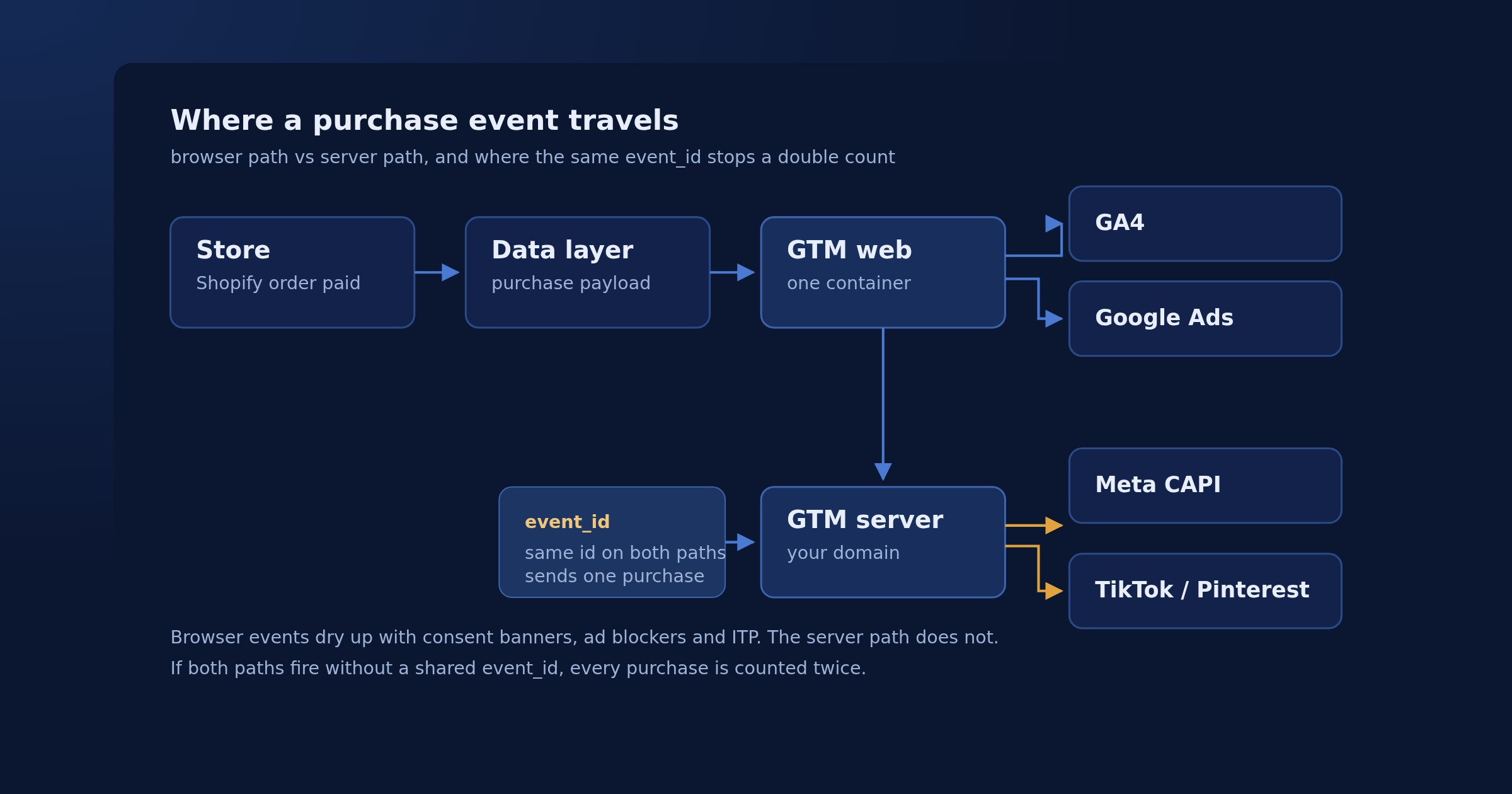
checkout_started,add_payment_infoandcheckout_completed, go through the pixel or not at all. - The purchase itself gets one sender. Either the Google and YouTube app sends it, or a custom pixel sends it, or GTM sends it from the storefront. Two of those at once is the bug.
This is why the split matters more than it looks. Here is a real funnel from a store I work on, and it shows where the money actually leaks.
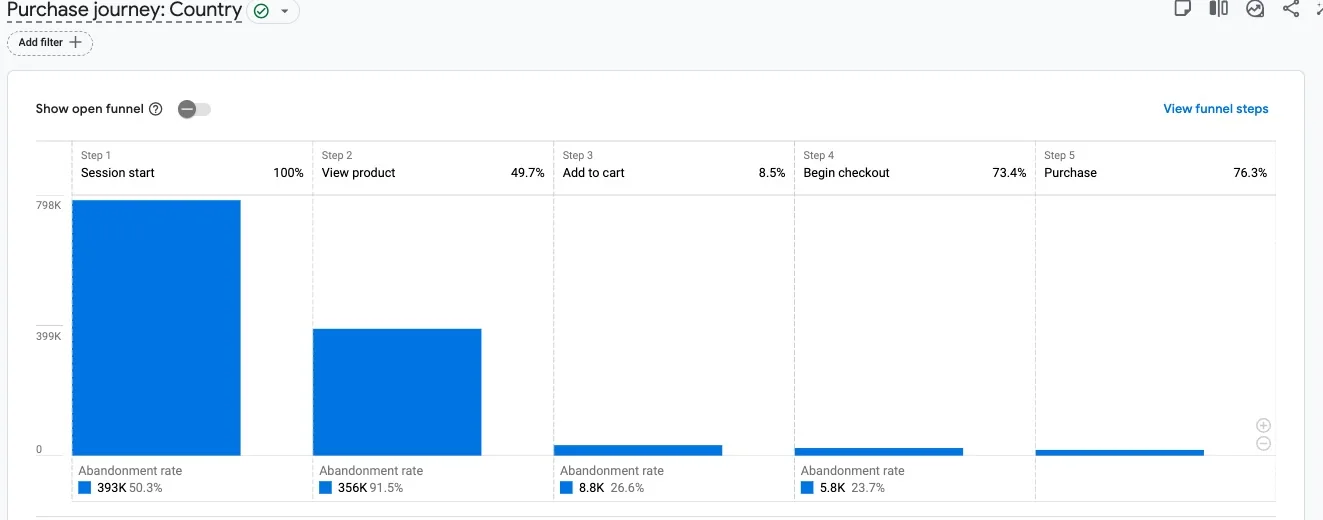
Product to cart at 8.5% is the number an owner wants to argue about, and it is a storefront event, which means it can live in GTM where you can watch it break. Cart to checkout and checkout to purchase are 73.4% and 76.3%, both healthy, and both impossible to measure without a pixel in the sandbox. If those two steps were missing from this funnel, the store would look like it had a checkout problem when it actually had a tag problem.
Consent, and the second dataset
Somewhere in every audit there is a moment where GA4 and Shopify simply refuse to agree, and consent is usually why. In markets that require it, Shopify holds the pixel until the visitor grants the permissions configured on that pixel. Meanwhile your GTM tags wait for whatever the banner writes into the data layer. Two gates, two definitions of yes.
Keep them in step. The Cookiebot and Consent Mode setup I use for this is unglamorous, but it makes the banner, the pixel and the container agree on one signal, and it stops the gap from turning into a permanent mystery.
Six ways one order becomes two
- GTM fires
purchaseon the confirmation page while the pixel also sendscheckout_completedmapped topurchase. Pick one. - The event name does not match. Shopify emits
checkout_completed, GA4 expectspurchase, and a missing mapping means the data lands and then gets ignored. - The payload arrives without
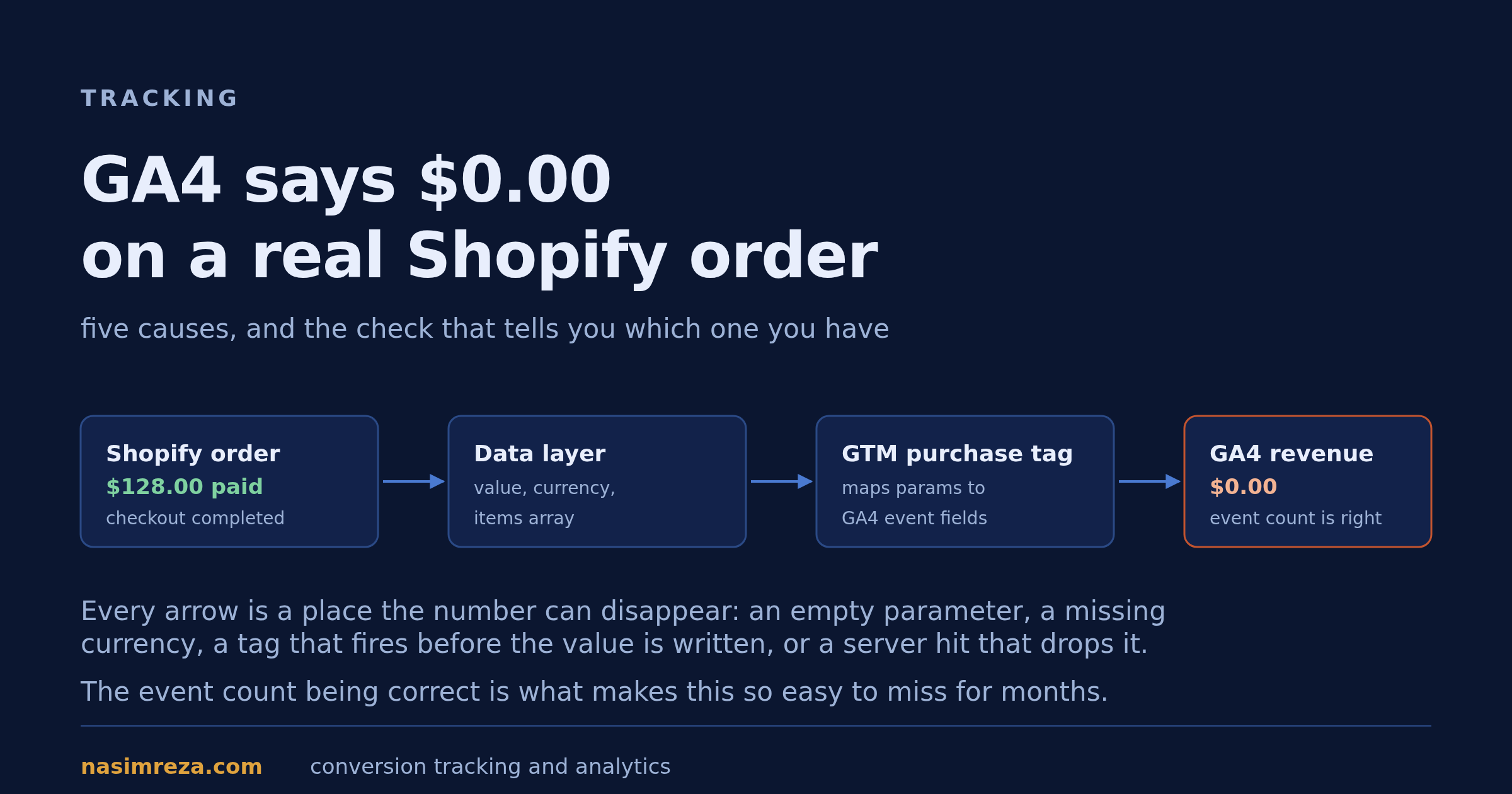
valueorcurrency, so the event counts and the revenue reads zero. Same shape as the five causes of a $0 purchase value. - An old purchase tag still lives in additional scripts or
checkout.liquid. Those were sunset in 2025. - The pixel and the banner disagree about consent, so one dataset ends up quietly narrower than the other.
- Somebody debugs the pixel in Tag Assistant. Pixel events show up in the Shopify Pixel Helper, not there, and hunting in the wrong log leads to fixing things that were never broken.
What a healthy event report looks like
You can tell a lot from the event list alone. This is the same store, and the shape of the list is what I want to see before I trust anything downstream.
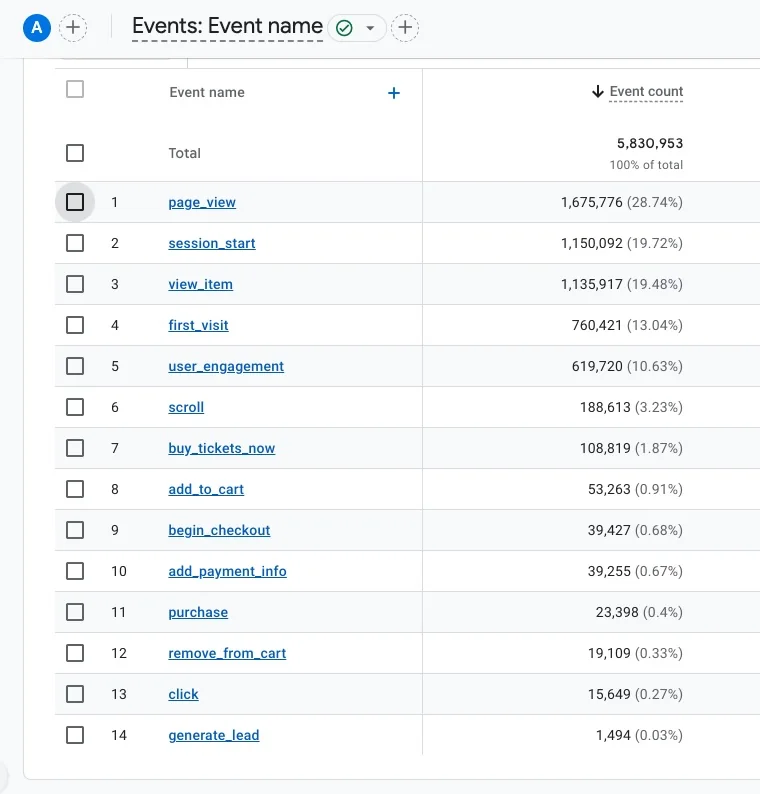
Three things I check on a list like this. add_payment_info is present at all, which means the checkout events are wired properly and not just the purchase. The purchase count sits below add_payment_info, because people abandon at payment, and those two numbers should stay in a believable ratio. And the custom events, here buy_tickets_now and generate_lead, tell me the store sells more than a standard cart item, which changes what the funnel is supposed to look like.
If purchase were higher than add_payment_info, I would not go looking at the checkout. I would go and find the second sender.
One order, one purchase
GA4 does deduplicate purchases by transaction_id on web streams, so two events with the same id collapse into one. Useful, and not a plan. It only works when both events carry the same id, and it gets shaky in one case worth knowing: with analytics_storage denied there are no persistent identifiers to match on, so a repeat purchase can survive and appear twice.
So the rule is one purchase source per store, sending the Shopify order id as transaction_id, checked on a real order. checkout_completed fires once per order even if the confirmation page is reloaded, which makes it the easiest of the options to trust.
How I check a store in twenty minutes
I open the storefront first and watch the pixel load in the Shopify Pixel Helper. Then a product page, because that is where product_viewed fires and where most themes still push a data layer that GTM reads. Then the checkout, which is the part I care about, since it is the only part with no second opinion available.
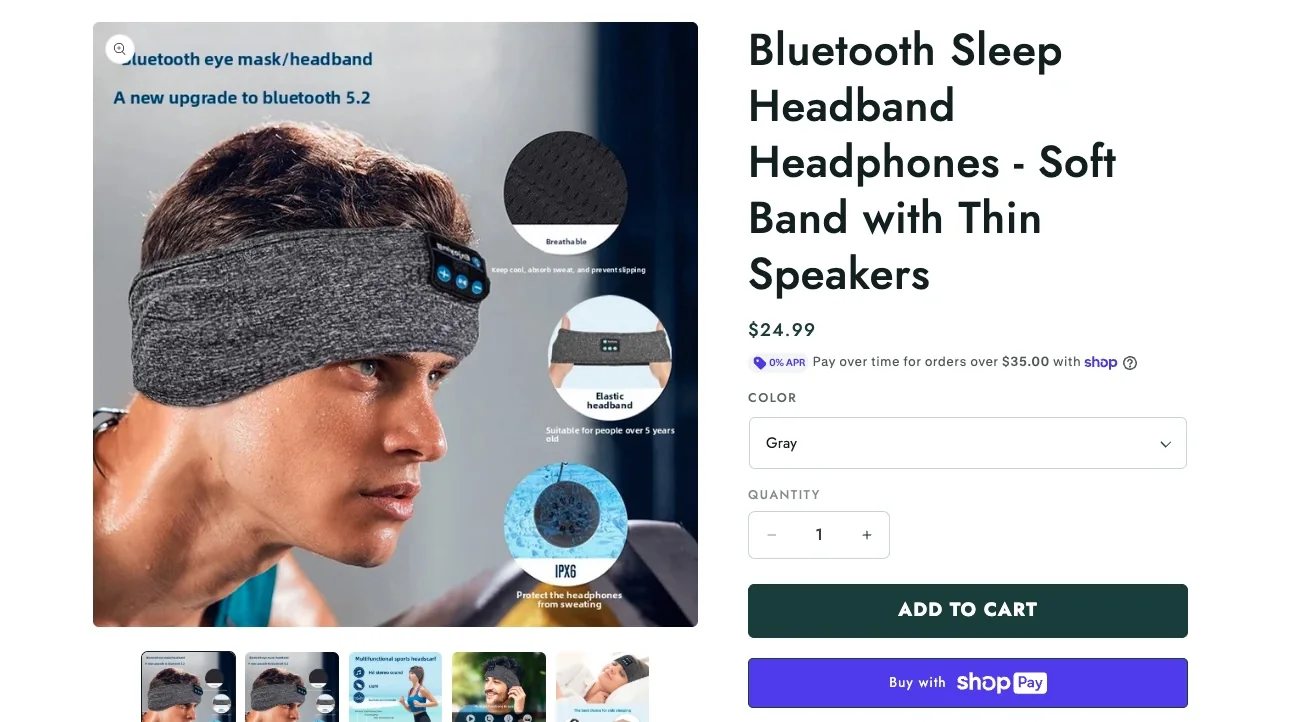
After that, one real order with a 100% discount code, DebugView open, and a comparison of the order id, value and currency against the Shopify admin. If the storefront side needs work as well, the full GA4 ecommerce setup for Shopify covers the data layer and the tags, and the Meta CAPI setup handles the server side once the browser events are clean.
I do not spend time deciding which tool is philosophically superior. Three questions do the job: how many purchase events exist per order, which system sends them, and whether the transaction id is the real Shopify order id. Twenty minutes, one order, no argument left.
If you want to run that check yourself first, the 14-point tracking checklist takes about an hour and needs no tools. If you would rather have it named and fixed, the read-only tracking audit is $99 and comes back in 48 hours as a written report on what is broken and what it costs you. A $19 15-minute call is usually enough to tell which of the six failures above you are looking at.
Want this set up properly in your own account? Fixed-price packages from $1,250, read-only audit first — or ask one question on a $19 call.